
Welcome
This guide is for owners and office staff setting Adminroo up for the first time. Field staff can skip to Out on site.
You use Adminroo in two places, and they share the same business:
- The office web app at adminroo.app/app, for the owner and office staff: setting up, quoting, scheduling and invoicing.
- The iPhone app, Adminroo for Tradies, for everyone on site: your day, the job timer, photos, forms and signatures.
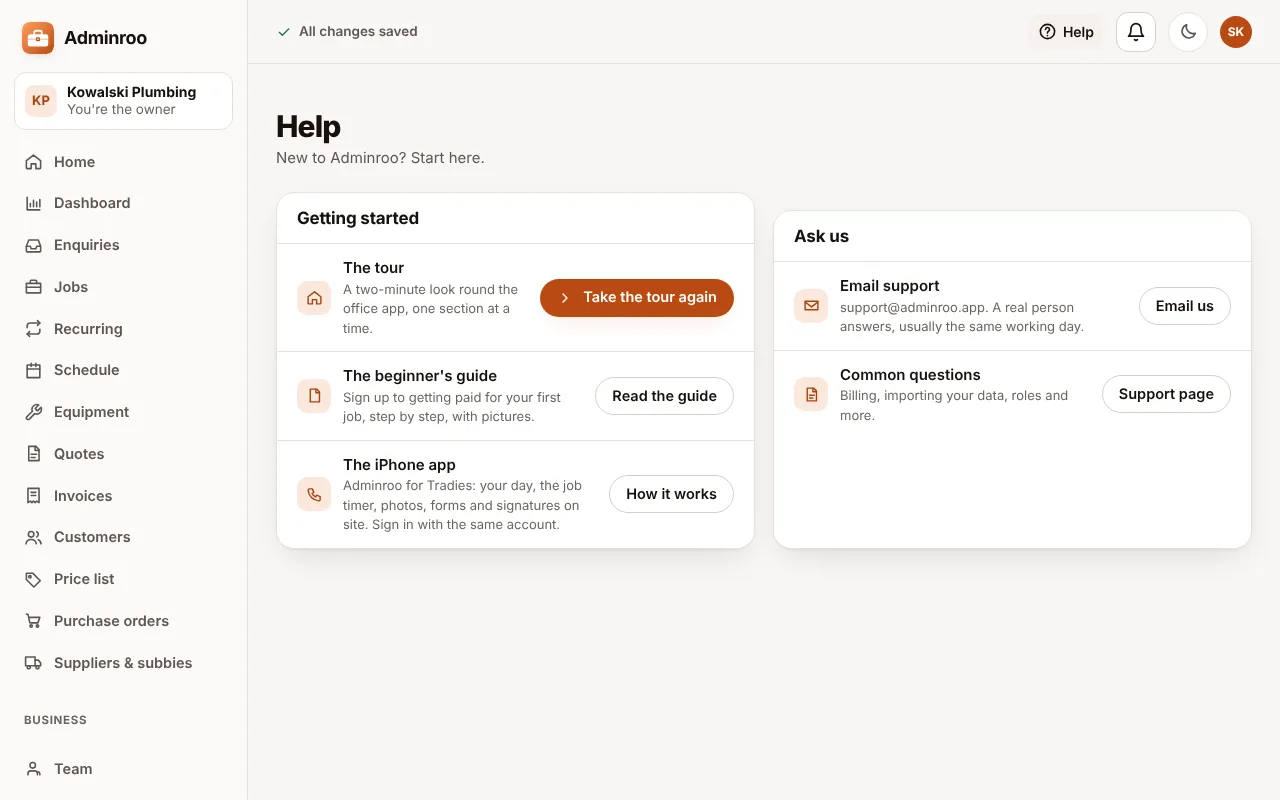
Both apps start you off with a Get set up list: a handful of steps, each ticked off as you do it. There's also a short tour in Help whenever you want one.
Sign up and sign in
Start on a computer: setting up is quicker with a keyboard.
- Choose Start free trial.
- Enter your name, email and a password of at least 8 characters.
- Name your business as it should appear on quotes and invoices, and pick your trade. Your ABN can wait.
- Confirm your email: the yellow banner sends a 6-digit code to your inbox.
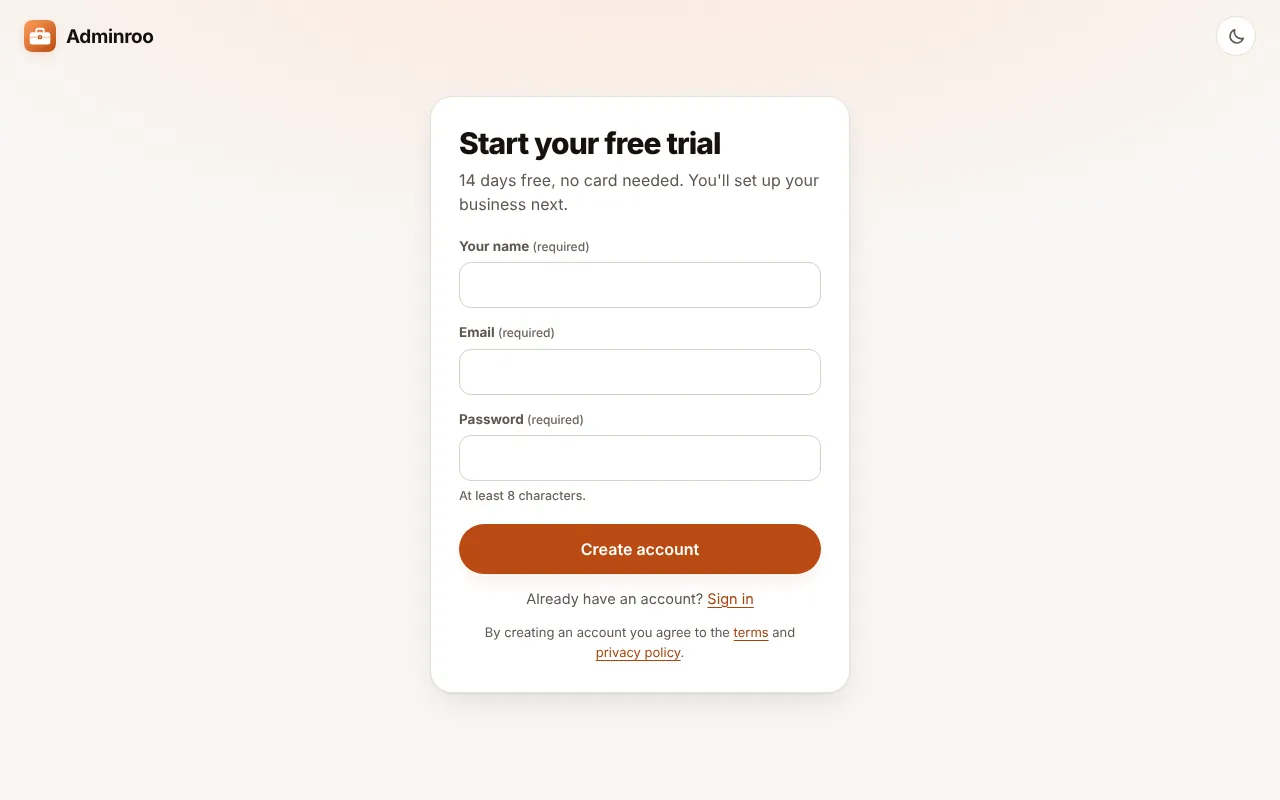
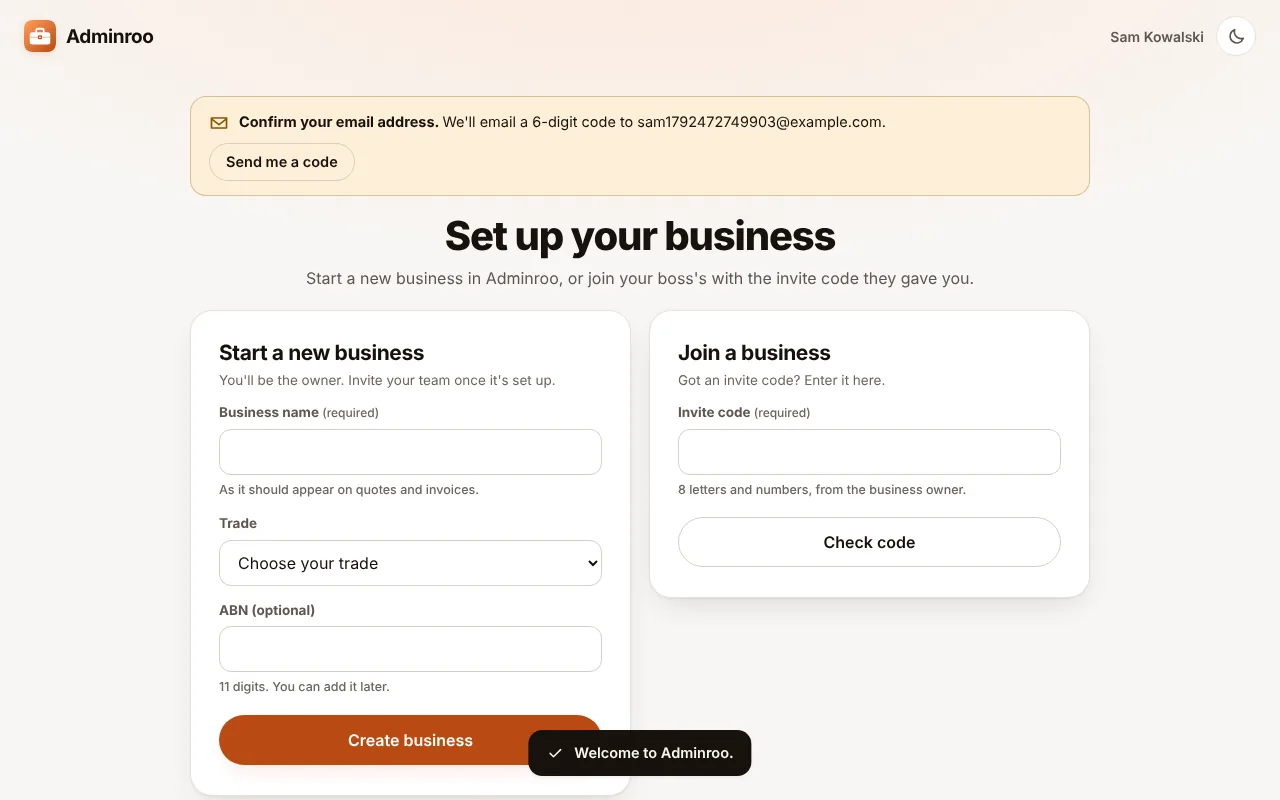
Joining someone else's business? Use Join a business instead, and type the 8-character invite code your boss gave you.
On your iPhone, install Adminroo for Tradies and sign in with the same email and password, or with Apple. Your business is already there.
Set up your business
Home (and Today on the iPhone) starts with a Get set up list and ticks each step off as you go. Work down it in this order.
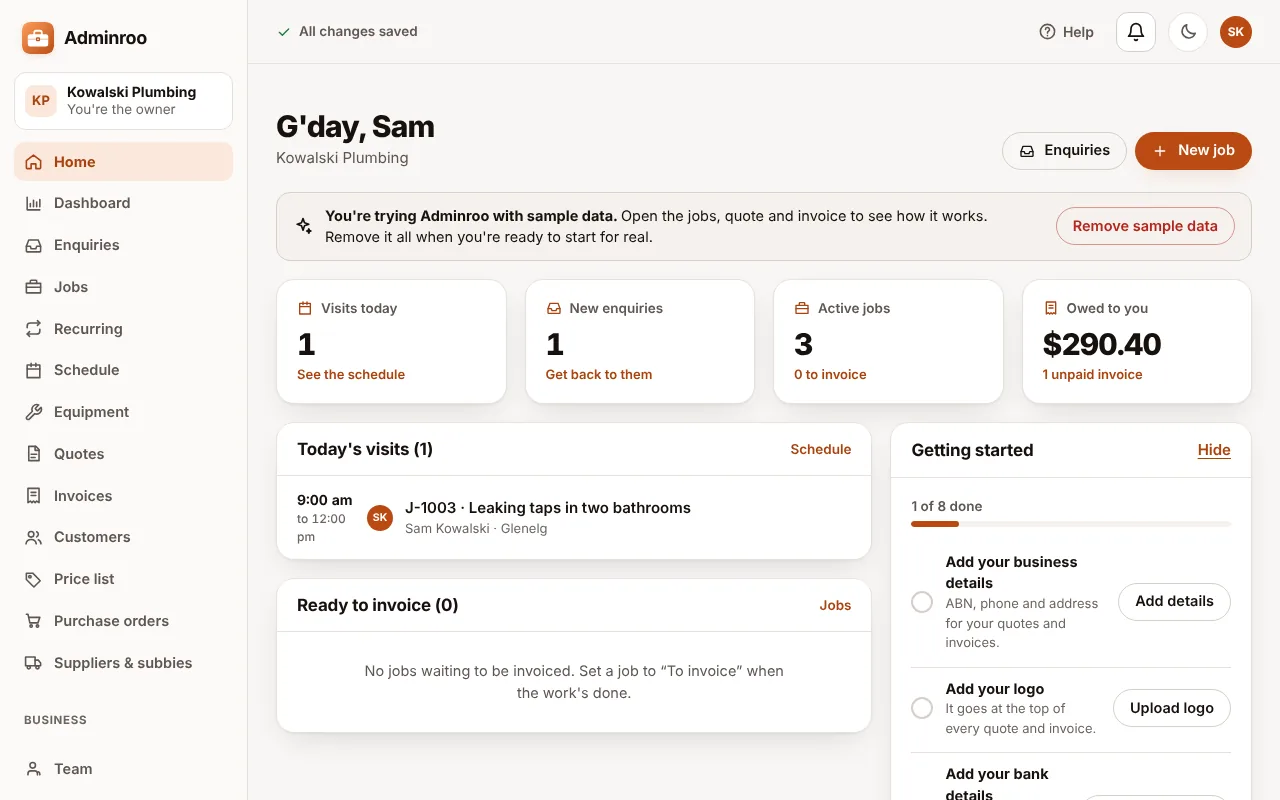
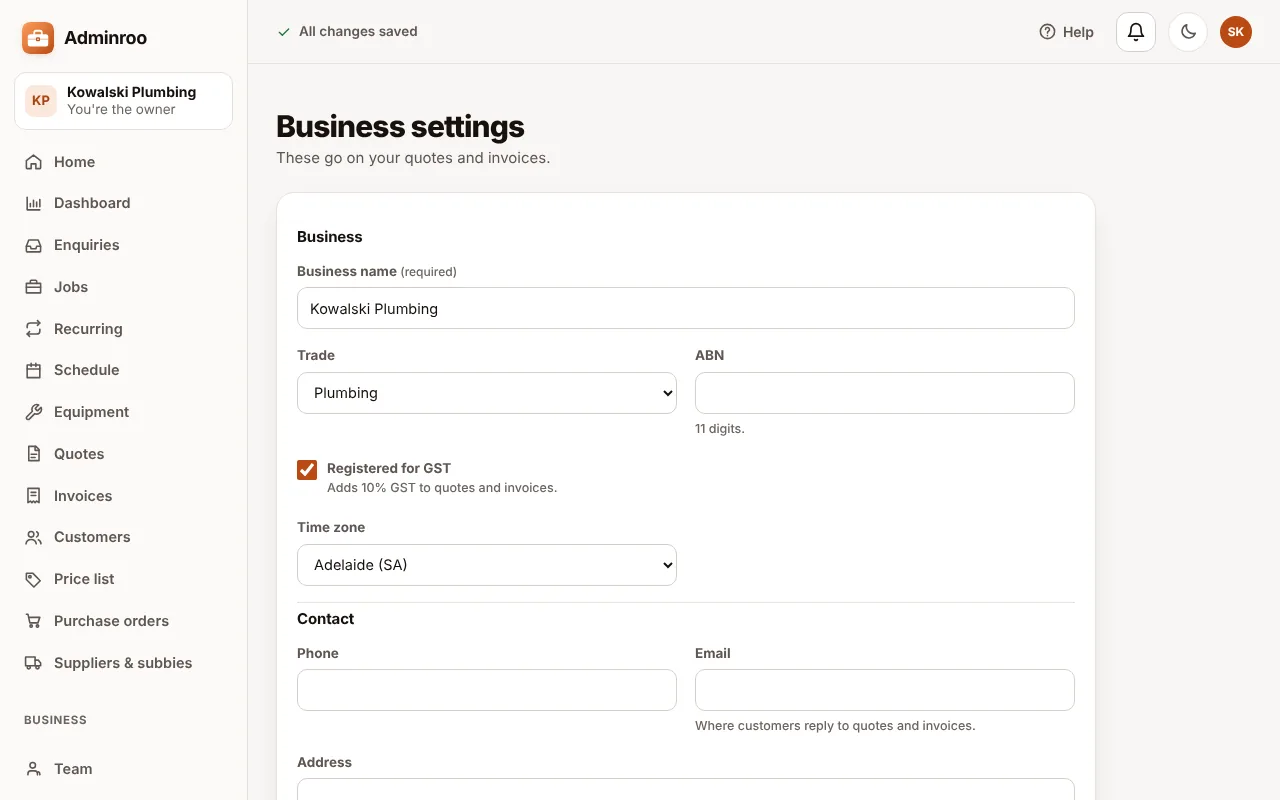
- Business details (Settings): ABN, GST, phone, email, address, payment terms, your labour rate, and your BSB and account number so customers can pay by bank transfer. They print on every quote and invoice.
- Logo (Settings): upload it once; it goes at the top of every quote and invoice.
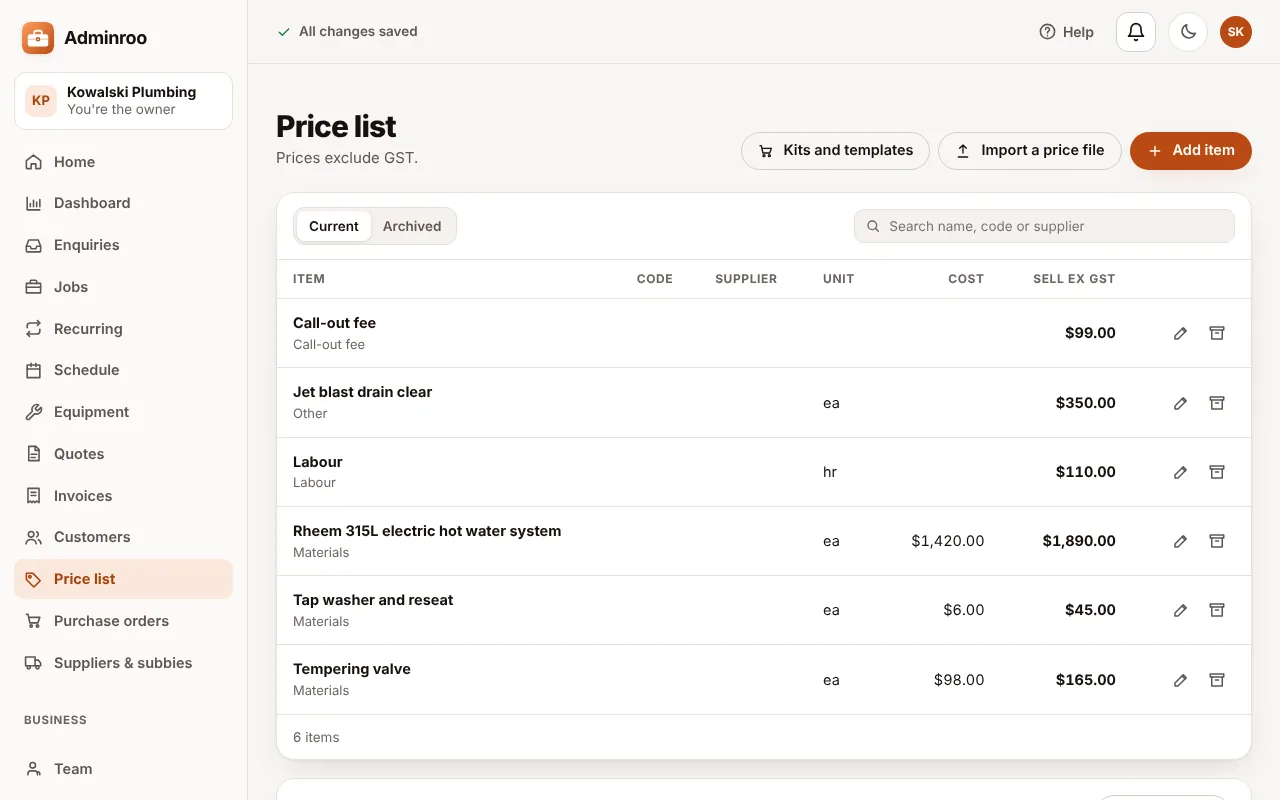
- Price list: add your labour rate, call-out fee and the parts you use most, or Import a price file from your supplier. Prices are ex GST.
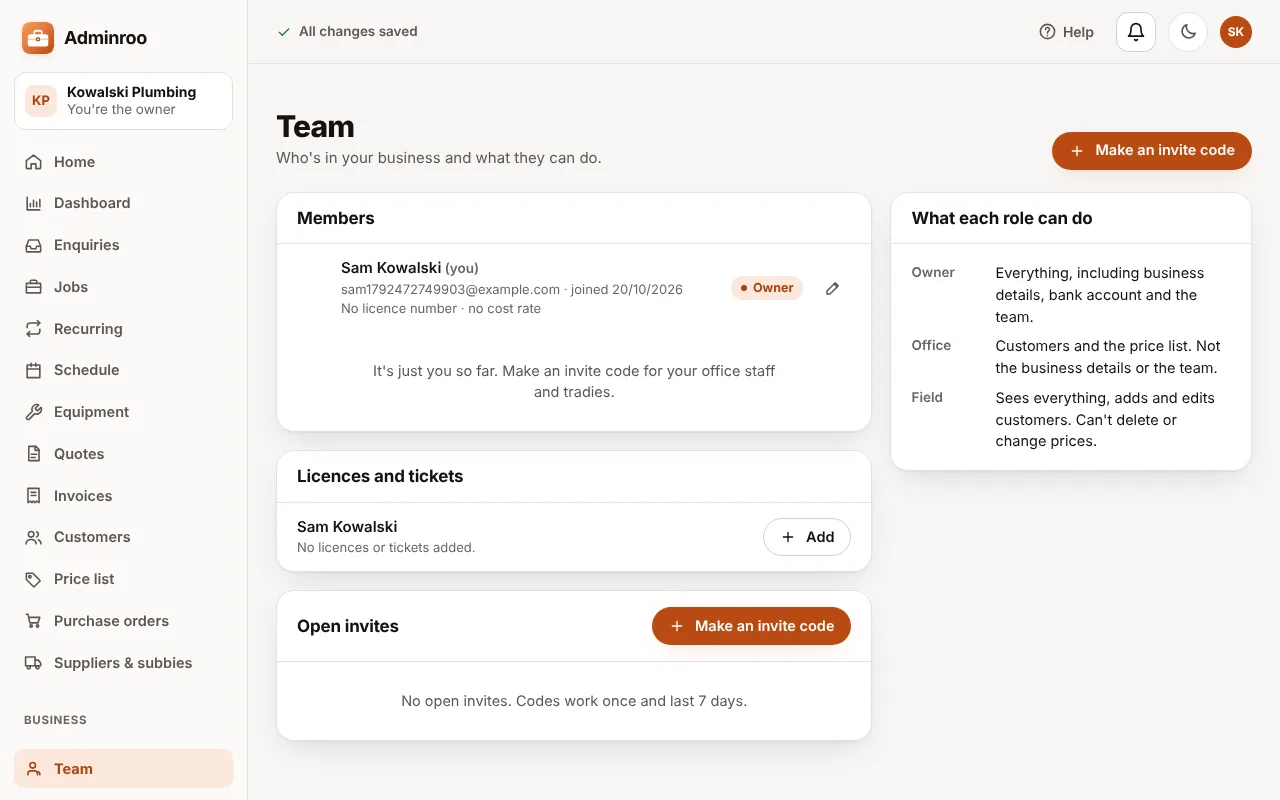
- Team: make an invite code for each person and choose their role.
- Owner: everything, including business details, the bank account and the team.
- Office: customers, jobs, quotes, invoices and the price list; not business details or the team.
- Field: their jobs, visits, time, photos and forms; adds customers; never sees prices, costs or invoices.
Want to look around first? Try it with a sample business on Home adds three customers, four jobs, a quote and an invoice, and Remove sample data takes them away again. Moving from Fergus, Tradify or a spreadsheet? Bring your data imports your customers and jobs from a CSV.
Your first job, start to finish
Every job follows the same path: enquiry, job, quote, visit, invoice, paid.
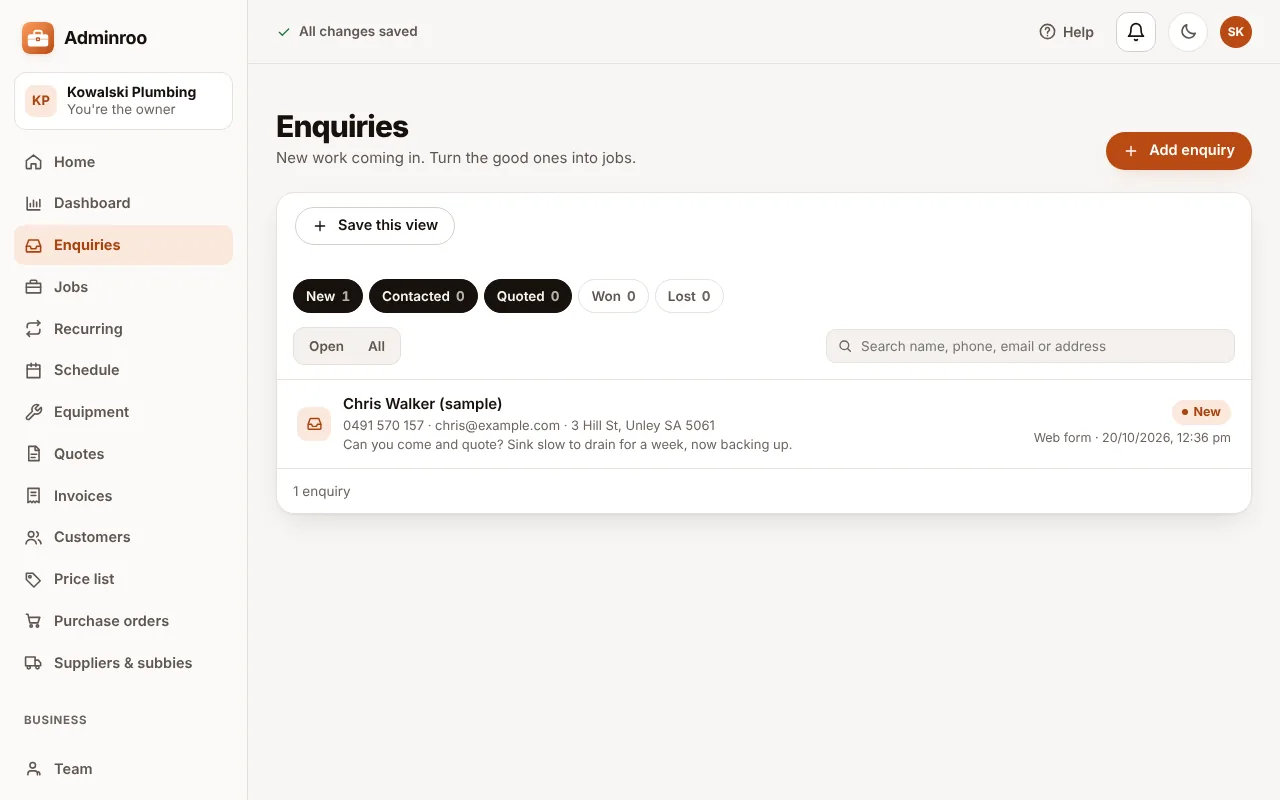
- Take the enquiry. When someone rings, add it in Enquiries. Enquiries from your website form land there on their own once you turn the form on in Settings. Choose Turn into a job.
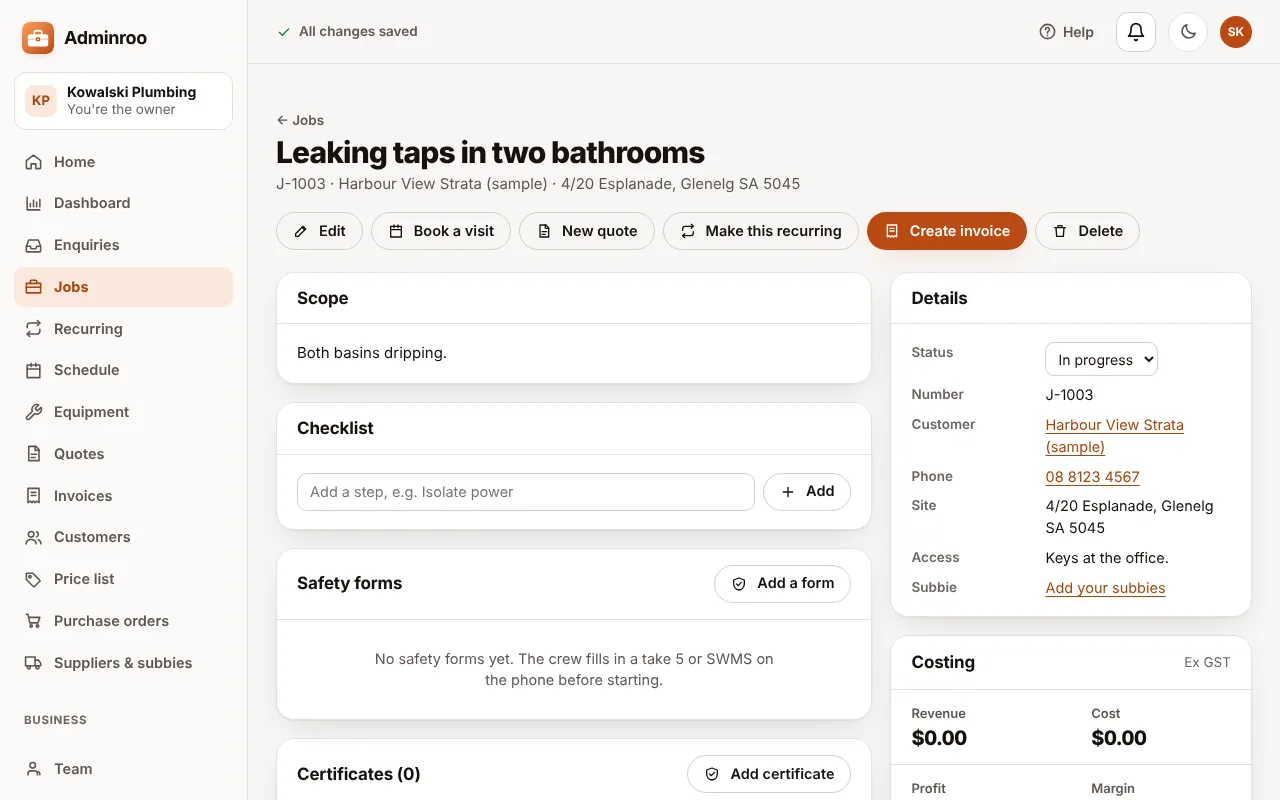
- Open the job. The job page holds the scope, checklist, visits, time, materials, photos, notes, safety forms, quotes and invoices.
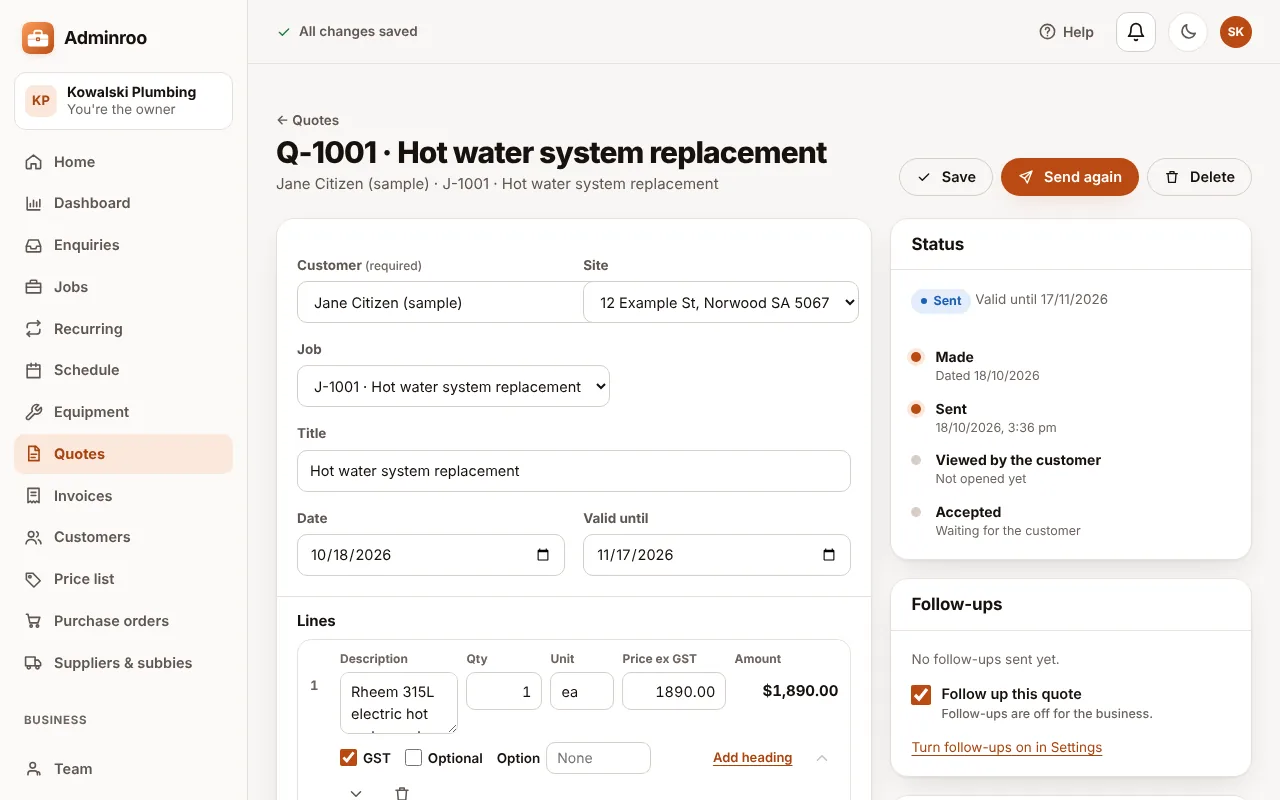
- Quote it. Choose New quote, add lines from your price list, then Send. Adminroo makes a link and can email it for you.
- The customer accepts online. They open the link, tick any options, sign and accept, and you're told straight away.
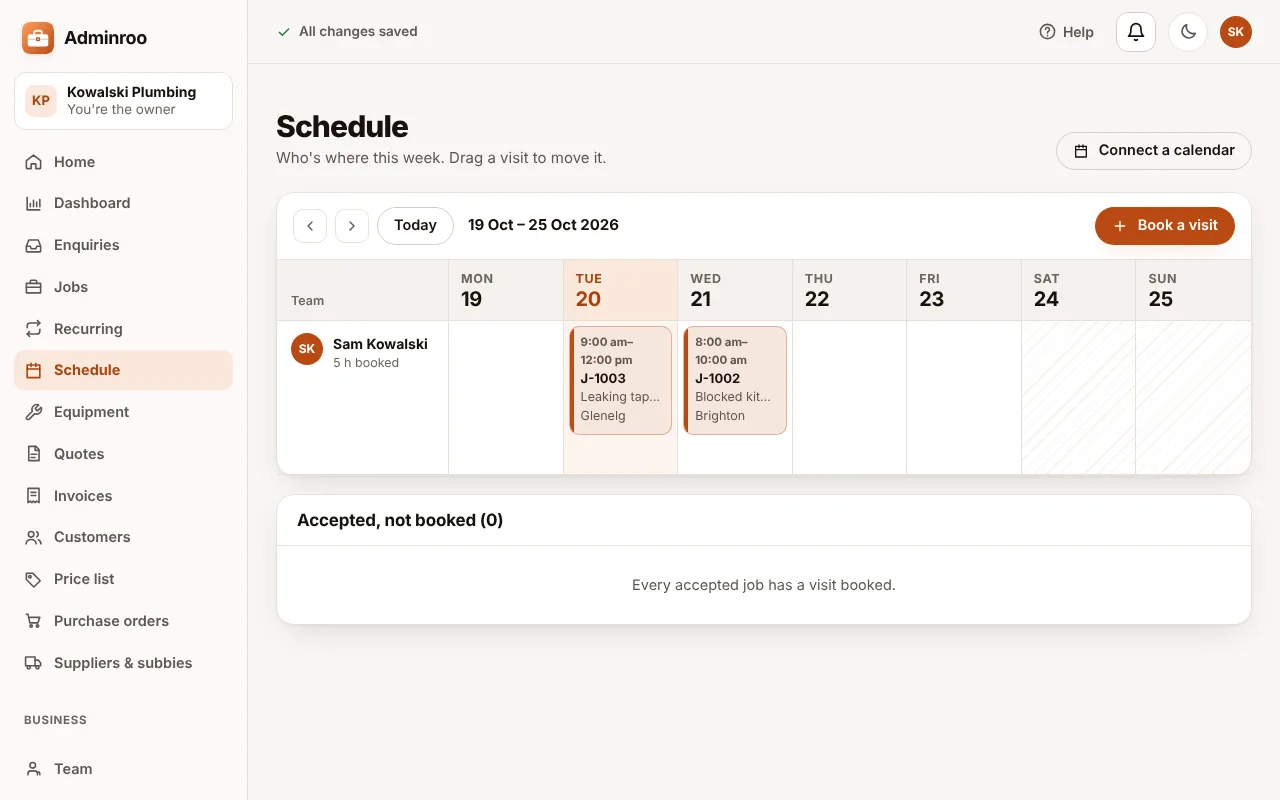
- Book the visit. Choose Book a visit on the job, or click a day on the Schedule. Drag a visit to move it.
- Do the work. On site the tradie runs the timer on their iPhone, adds materials and photos, fills in safety forms and takes the customer's signature.
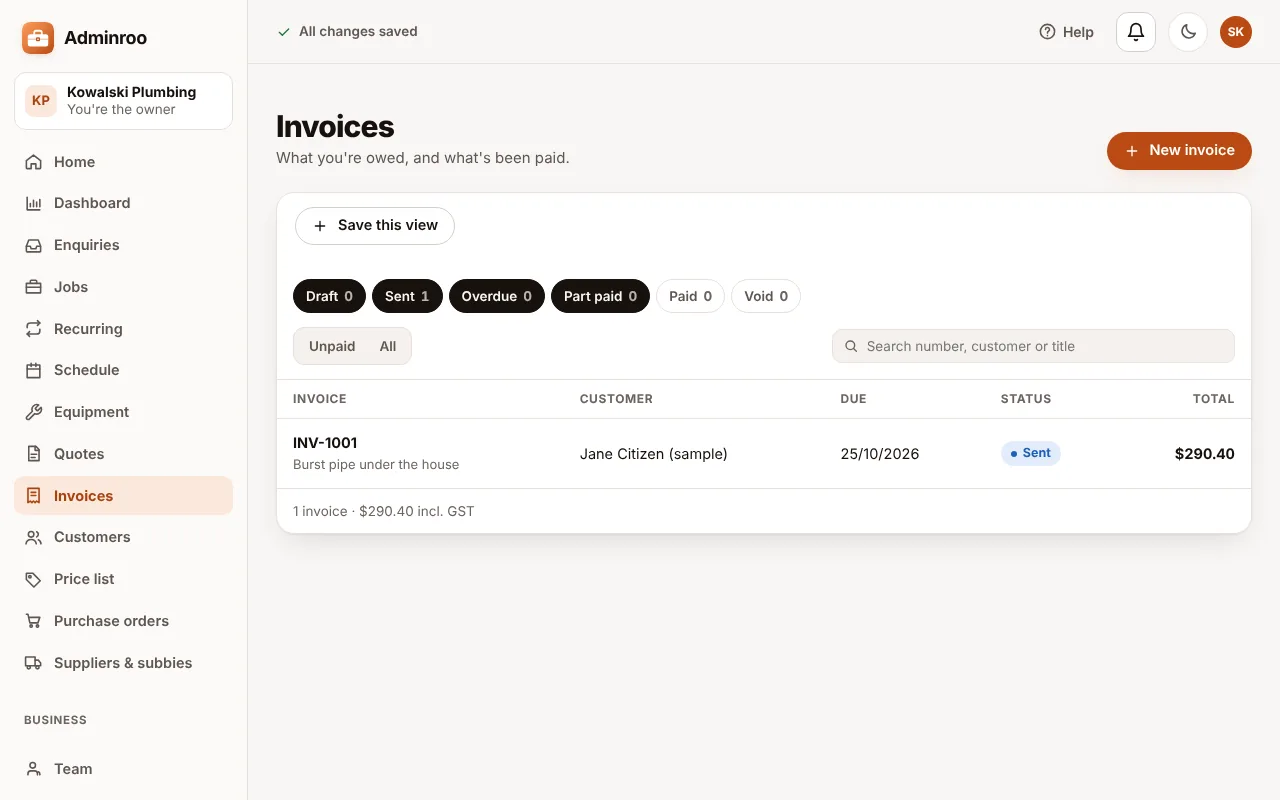
- Invoice it. Set the job to To invoice, then Create invoice: the time and materials come across. Check it and Send.
- Get paid. Use Record payment for a bank transfer, or let customers pay by card once you connect Stripe in Settings. Overdue reminders go out on their own if you switch them on.
Out on site with the iPhone app
The iPhone app is built for the ute and gloved hands, and it works offline: changes sync when you're back in range. Five tabs run along the bottom.
- Today: your visits in order, the running timer, new enquiries and the notification bell.
- Schedule: your visits by day or week; book, move and mark visits done.
- Jobs: every job; the job card has Call, Navigate and Email buttons.
- Money: quotes, and for owner and office staff invoices and payments.
- More: customers, the price list, your team, settings, and Help with the tour and this guide.

A typical visit:
- Open the visit from Today and tap Navigate. With texts switched on, send the customer On my way with your arrival time.
- Fill in the Take 5 or SWMS safety form before you start, and sign it with your finger.
- Start the timer. It stays above the tabs, and on the lock screen, until you stop it.
- Add materials from the price list and take photos, each with a caption.
- Found more work? Write it up as a variation; the office sends it for approval.
- Take the customer's sign-off, then mark the visit done. The last visit done moves the job to To invoice.

Back in the office
- Home is the to-do list: today's visits, new enquiries, jobs ready to invoice, quotes waiting and money owed.
- Schedule is the week board: each person a row in their own colour, and accepted jobs with no visit listed underneath.
- Business numbers (owner and office, from the button at the top of Home) shows what's owed and overdue, work not yet invoiced, quotes won, 12 months of invoiced against paid, and job costing. Export for your accountant downloads invoices and payments as CSV.
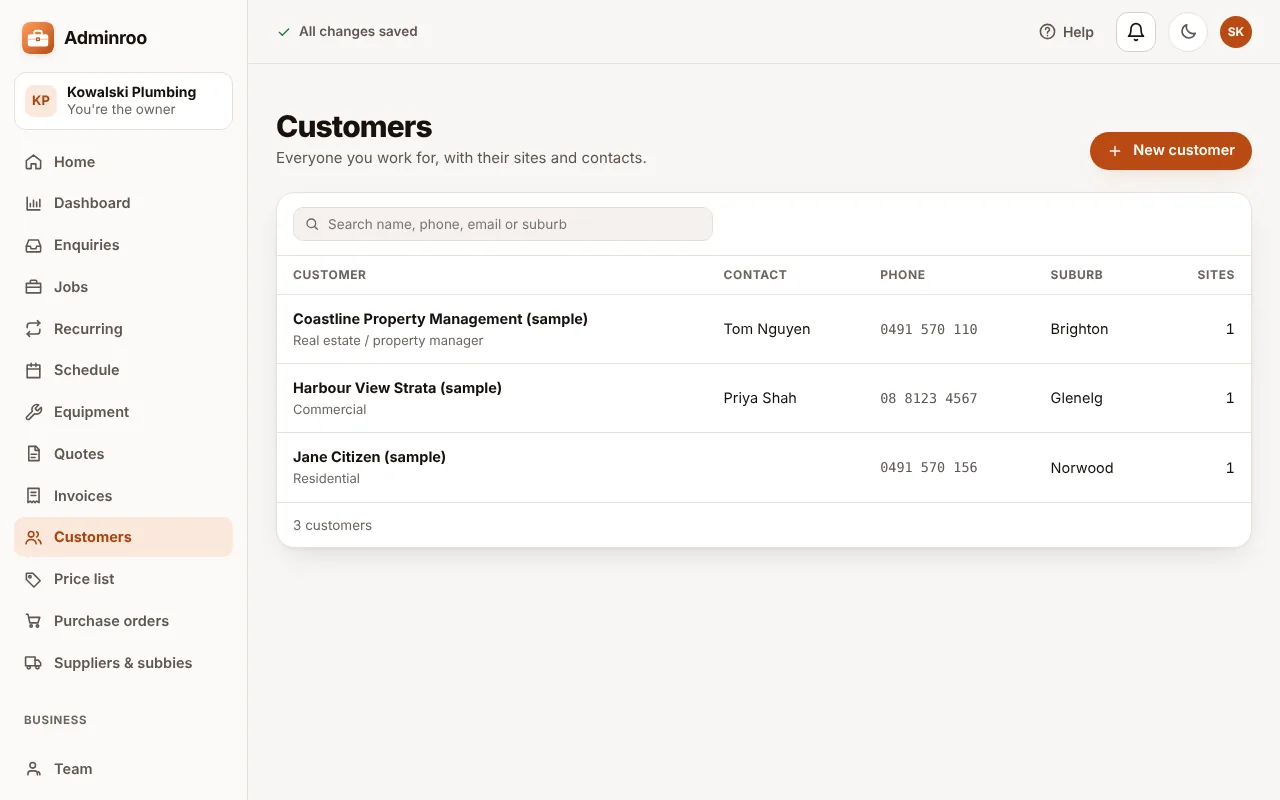
When you're ready, connect the rest from Settings: card payments through Stripe, Xero or MYOB, texts to customers, and the enquiry form for your website. Each one is optional.
Getting help
- Replay the tour. In the office web app choose Help at the top right, then Take the tour again. On the iPhone, go to More, then Take the tour again under Help.
- Email us at support@adminroo.com.au. Tell us your business name, what you were doing and what you expected; a screenshot helps.
- Common questions are on the support page.